How to Change Your Outfit in a Photo Using AI (Step by Step)
Published July 5, 2026 · OutfitGen Team
Changing your outfit in a photo with AI takes about 30 seconds and no design skills. You upload a photo, describe what you want to wear, and get a result. This guide covers how to do it, how to get the best results, and what to watch out for, with real output photos so you know what to expect before you start.
What you need
- A clear photo of yourself (tips below)
- A description of the outfit you want to wear
- An AI clothes changer tool
For most people, the fastest starting point is OutfitGen's clothes changer. You can try it 3 times without creating an account.
Step 1: Choose a good source photo
The quality of your result depends more on the source photo than on anything else.
Use a photo that is: - Well lit: natural light works best; avoid harsh shadows across the body - Single subject: you in the frame, not a group photo - Full outfit visible: the AI needs to see what it's replacing; a photo cut off at the waist will only change the upper body - Facing forward or at a slight angle: extreme side angles or back-facing photos produce weaker results - High enough resolution: at least 500px on the short side; any modern smartphone photo is more than sufficient
You do not need a professional photo. The test we'll show throughout this guide used a casual outdoor photo with an expressive pose.
Here's the source photo we used:
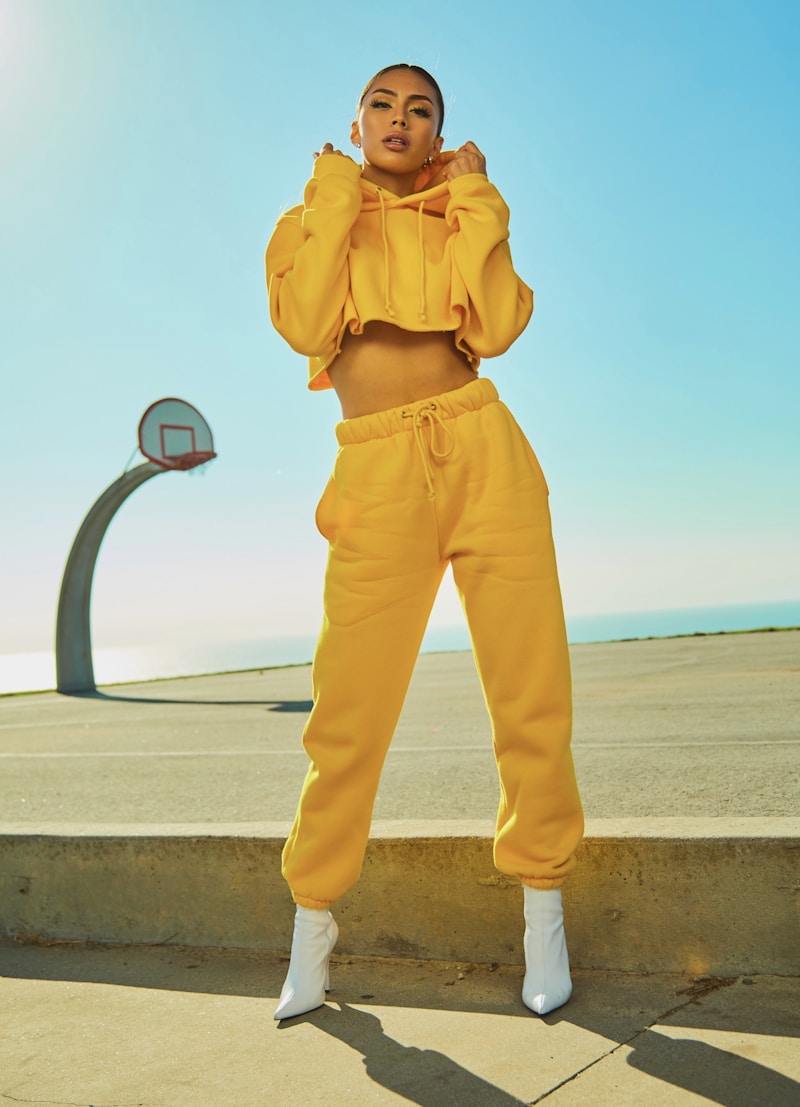
A woman in a yellow hoodie and grey sweatpants on an outdoor basketball court. Hands pulling up the collar, bright sky, basketball hoop and concrete steps visible in the background. A real photo with personality, not a studio shot with a blank background.
We used this photo intentionally. The background is complex. The pose is expressive. These are the conditions where tool quality differences show up clearly.
Step 2: Write a clear outfit prompt
The AI follows your text description. More specific prompts produce better results.
Less specific: > "a nice outfit"
More specific: > "a fitted navy blue wool blazer over a crisp white button-down shirt, with dark slim charcoal trousers"
Good prompts include: - Garment type: blazer, dress, t-shirt, hoodie, suit jacket, jeans, wide-leg trousers, floor-length gown - Color: navy blue, cream, charcoal grey, emerald green, ivory white - Fit: fitted, oversized, slim, relaxed, floor-length, cropped - Material (optional): linen, wool, denim, satin (adds realism but isn't required)
You don't need to describe every piece of clothing. Start with the main items you want changed.
What the prompt produced on our test photo
We ran three different prompts on the same source photo using OutfitGen.
Blazer (formal):
Prompt: "a fitted navy blue wool blazer over a crisp white button-down shirt, with dark slim charcoal trousers"
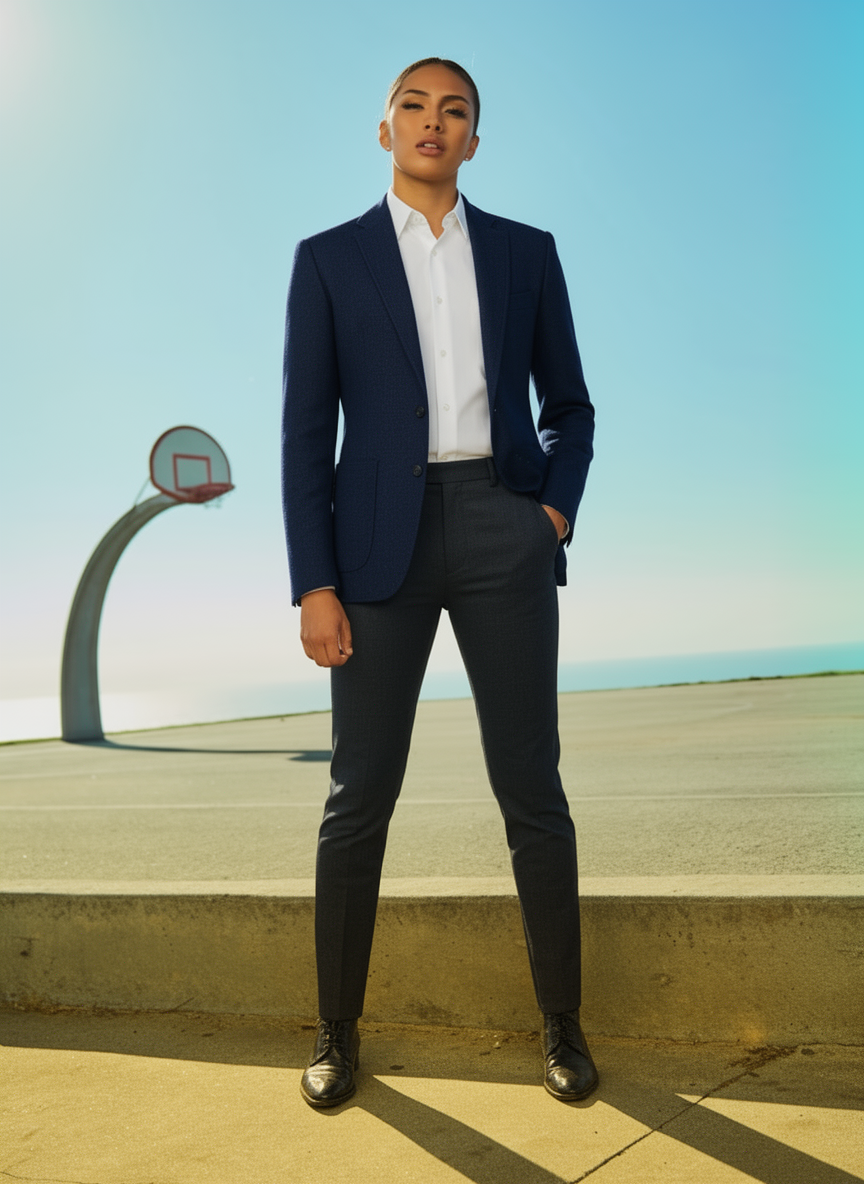
The navy blazer, white button-down, and charcoal trousers are all present. The background (basketball hoop, concrete steps, sky) is preserved completely. The wool texture is visible in the lapels. Face, skin tone, and pulled-back hair are unchanged. The pose adapted naturally from the collar-grab to a standing stance.
Evening dress:
Prompt: "an emerald green floor-length gown with a V-neckline and ruching at the waist"
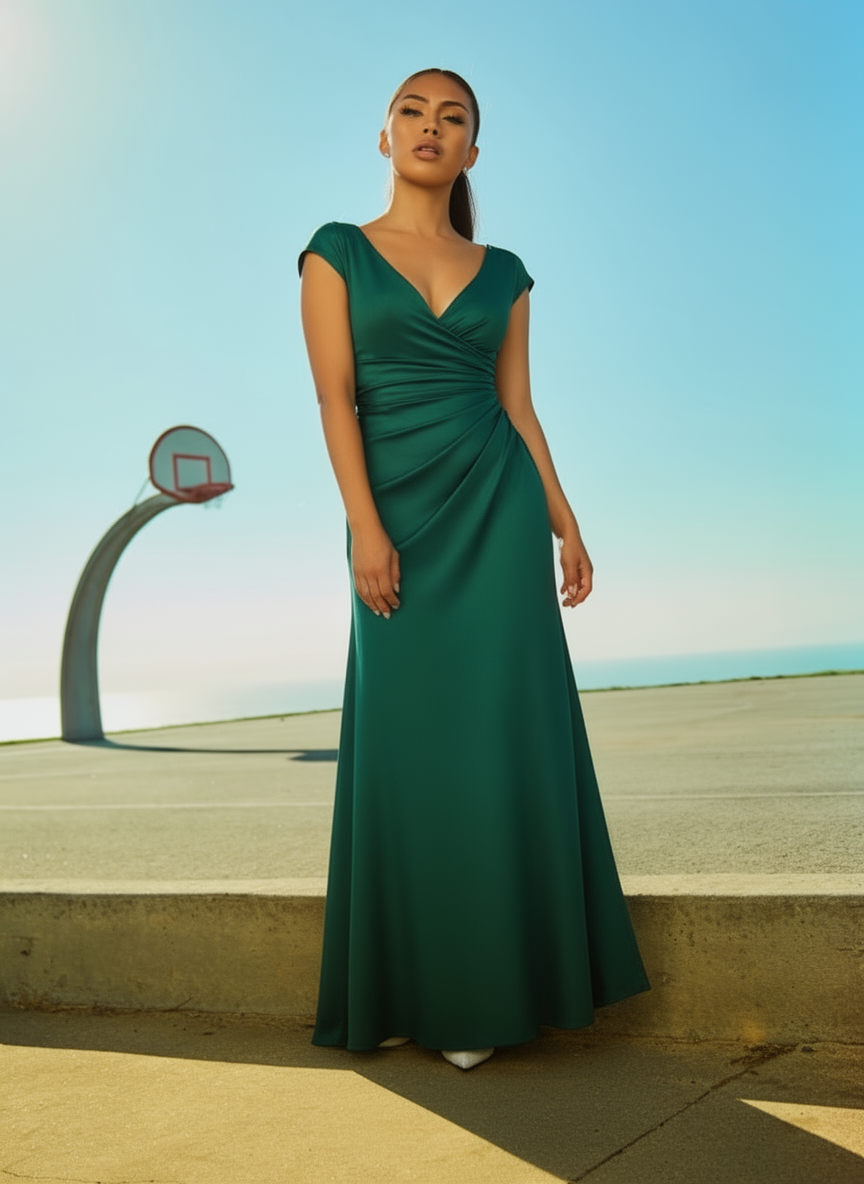
The gown rendered with good fabric drape at the floor-length hem. Same face and features. Background unchanged. The white heels pick up the white-shoe theme from the original white boots in the source photo, a subtle detail that wasn't explicitly requested.
Casual (most interesting result):
Prompt: "a cream linen button-down shirt with light wash wide-leg jeans"
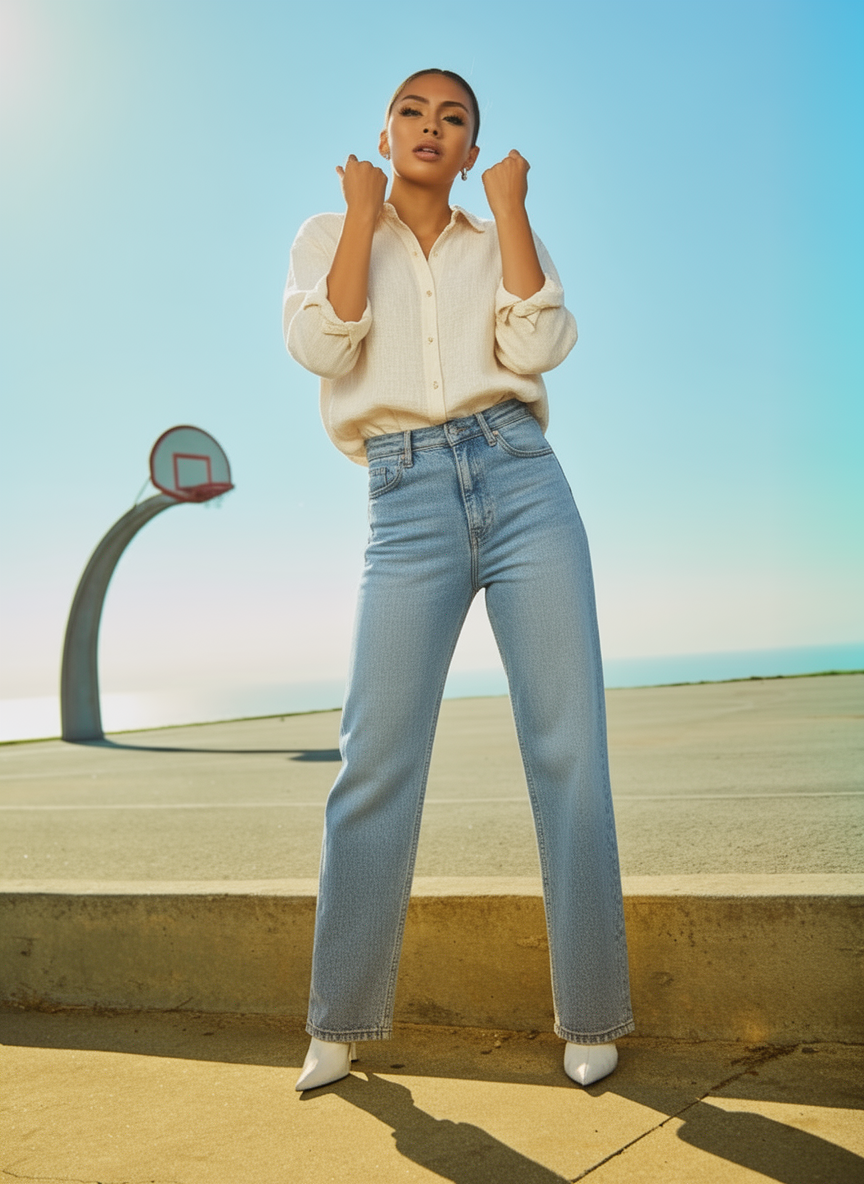
This is the result that stood out most. The original pose (hands raised in a defiant collar-grab) was preserved completely. Raised fists, the same forward energy. The outfit changed, but the personality of the photo survived. The original white boots were also carried through without being asked.
Step 3: Generate and review
Upload your photo, enter your prompt, and generate. Most tools take 15 to 30 seconds.
Review the result for:
Does it look like you? Identity preservation is the most common failure mode. If the face or complexion changed significantly, try a different tool or a different photo. The tools vary dramatically on this. In our comparison testing, one tool (Magic Hour) converted the outdoor basketball court to a dark studio and substantially changed the face. That wasn't a glitch. It's how that tool works.
Does the outfit match what you asked for? Color, garment type, and fit should match your prompt. Minor interpretation differences are normal. One competitor (Krea) rendered our "white button-down" as blue-and-white striped. That's a prompt adherence failure worth knowing to watch for.
Are there any artifacts? Distorted arms, garment edges, or unexpected visual noise are more common on some tools than others. In our testing, Krea showed prominent swirly artifact lines throughout the entire image. FitRoom and OutfitGen had none. Serious artifacts usually mean regenerating or trying a different tool.
Did the background change? Most tools default to background preservation, but some modify it. Krea added a streetlamp that wasn't in the original. Magic Hour converted the outdoor court to a moody studio. If your background changed, specify "preserve the original background" in your prompt.
Step 4: Save and use your image
Good tools produce full-resolution output with no watermark, even on the free tier. OutfitGen does this: 3 no-account generations at full resolution, no watermark. Download and use directly for profile photos, social content, dating apps, lookbooks, or anywhere else.
Tips for better results
Tip 1: Avoid busy backgrounds for best quality
Plain or simple backgrounds let the model focus on the outfit region. The basketball court test shows the better tools can handle a complex background, but if you have a choice, simpler is easier for the model and usually produces cleaner edges.
Tip 2: Match the formality of what you're asking for
If you're in casual clothing in the source photo and asking for a formal outfit, the lighting and body posture may look mismatched in the result. A relaxed gym pose wearing a blazer can look odd. For the most realistic results, start with a photo that has roughly appropriate posture for the outfit you want.
Note: this matters more for some tools than others. The OutfitGen casual test above showed that an expressive, casual pose can work well with casual clothing even when the source photo had a very distinct energy.
Tip 3: Generate multiple times
AI image generation has inherent randomness: the same prompt and photo can produce meaningfully different results. Run 2 or 3 times and choose the best. Most free tiers give you enough generations to do this.
Tip 4: Be specific about what to keep
If there are elements in your photo you want preserved (a specific background, accessories, your hairstyle), mention them: "keep the background as-is, change only the clothing to a white linen shirt." Better tools (like OutfitGen) preserve these by default. Explicit instructions help on tools that sometimes modify them.
Tip 5: Test directions before committing
AI outfit changing is fast and cheap (often free). Use it to test style directions before spending money. Want to know if you'd suit a green blazer? Generate a few options. Want to compare a business formal look against smart casual? Generate both. The test takes 20 seconds.
What tools actually do to your photo: and what they don't
Based on our testing with real output images, here's what actually changes and what doesn't:
What changes: - The clothing (obviously) - Shoes: may or may not change depending on the prompt and tool - Accessories: often inconsistently handled; earrings, watches, and bags may appear, disappear, or change
What should stay the same (on good tools): - Your face shape and features - Skin tone and complexion - Hair color and style - Body proportions - Background
What varies by tool: - Pose adaptation: OutfitGen preserved expressive poses best. Tryonr reinterpreted a collar-grab as a boxing stance. FitRoom translated it to hands-near-lapels. - Background accuracy: OutfitGen and FitRoom preserved it cleanly. Krea added a streetlamp. Magic Hour replaced it entirely. - Identity: the single biggest differentiator across tools. Magic Hour changed both face and background. OutfitGen preserved both.
Common problems and fixes
The face looks different
This is the most common complaint, and it's almost always a tool-selection issue rather than a photo issue. Identity preservation quality varies significantly across tools. Switching to OutfitGen is the fastest fix. It has the strongest identity preservation we measured in testing. Also try a higher-resolution source photo; low-resolution inputs are harder to preserve accurately.
The outfit doesn't match my prompt
Be more specific. "A shirt" gives the model too much latitude. "A fitted light blue Oxford button-down" gives it much less. Check whether the tool supports detailed prompts. Simpler tools work better with simpler prompts. One tool in our tests (Krea) rendered "white button-down" as blue-and-white striped, which is a known limitation of its creative interpretation mode.
The background changed
Specify "keep the original background" in your prompt. Better tools default to background preservation, but an explicit instruction helps on tools that don't. If background preservation keeps failing on a specific tool, switch to OutfitGen or Tryonr, which preserved the basketball court background consistently in our tests.
There are artifacts or visual glitches
Regenerate 1 or 2 times. Minor artifacts are often a one-off rather than systematic. If the artifacts are persistent and prominent (the swirly lines we observed in Krea's output, or consistent seam distortions), the tool's rendering quality at that prompt type is the issue. Switching tools is the faster solution than trying to prompt around it.
The pose looks wrong
If the model reinterpreted your pose in a way that looks odd, try specifying the pose explicitly: "person standing naturally with arms at sides". This works better as a corrective instruction on a neutral source photo. For highly expressive source poses, OutfitGen is the most reliable tool for preserving intent rather than just physical state.
What people use AI outfit changers for
- Dating profile photos: testing how different outfits look before a shoot, or refreshing a photo where the outfit was the only problem
- Social media content: showing multiple outfit options in a lookbook without multiple shoots
- Shopping decisions: seeing how a style direction looks on your actual body before buying
- E-commerce: brands generating product photos across different models without hiring photographers
- Personal style exploration: trying styles you wouldn't risk buying first
The best tool to start with
For most people reading this guide, OutfitGen is the right starting point:
- Works on casual, formal, and evening wear
- Strongest identity preservation we measured (9.2 in testing)
- Preserves expressive poses instead of reinterpreting them
- 3 free generations with no account required
- No watermark on free outputs
- Results in ~20 seconds
For trying on a specific item you found while shopping (where you have a product photo), use FASHN. It's built specifically for reference-image garment try-on. For creative editorial concepts where you want artistic interpretation over realism, Magic Hour is excellent.
Frequently asked questions
How many times can I generate for free?
On OutfitGen: 3 times without an account, more with a free account (no credit card). On Tryonr: 3 per day. On Krea AI: ~10 per day (watermarked). Most tools have some free tier; OutfitGen's is the most accessible for first use.
Can I change multiple outfits in one session?
Yes. Each generation is independent: generate one outfit, see the result, generate a different outfit on the same photo. There's no required sequence.
Does it work on photos of other people?
Technically yes, but be thoughtful about consent. Generating outfit changes on your own photos for personal use is the primary intent. Modifying photos of other people without their knowledge raises consent and privacy concerns.
Will the AI change anything other than my outfit?
The best tools change only the clothing while preserving everything else. In practice, small changes to adjacent areas (hair, accessories) can occur. The white boots from the source photo were preserved in one OutfitGen test but carried through to an evening look in another (they became white heels). Small adjacent-area interpretations are normal; significant face or background changes indicate a tool with weaker identity preservation.
What file formats work?
JPEG and PNG are universally supported. Most tools accept photos up to 10-20 MB. For best results, use the original photo from your phone rather than a screenshot or heavily compressed version.
Ready to try it yourself?
Get started with OutfitGen, 3 free generations, no sign-up required.
Try OutfitGen Free