Describe any look
Choose Describe the look and write the clothes you want, such as a navy linen blazer over a white shirt. The Tailored suit, Streetwear and Evening look presets give you a starting description.
AI Clothes Changer
OutfitGen is a browser-based AI clothes changer for creating a new look from a short description or a garment photo. Your first edit is free with no account or credit card required.
Skip the reshoot and the layers. Upload one photo, describe the look you want, and create a new version while OutfitGen works to preserve the person, pose, and lighting that made the original photo work.
The logo, the stripes, the fit. OutfitGen Engine Pro passed all 13 garment-reference cases in its October 19, 2026 study, with three runs per case. See the test
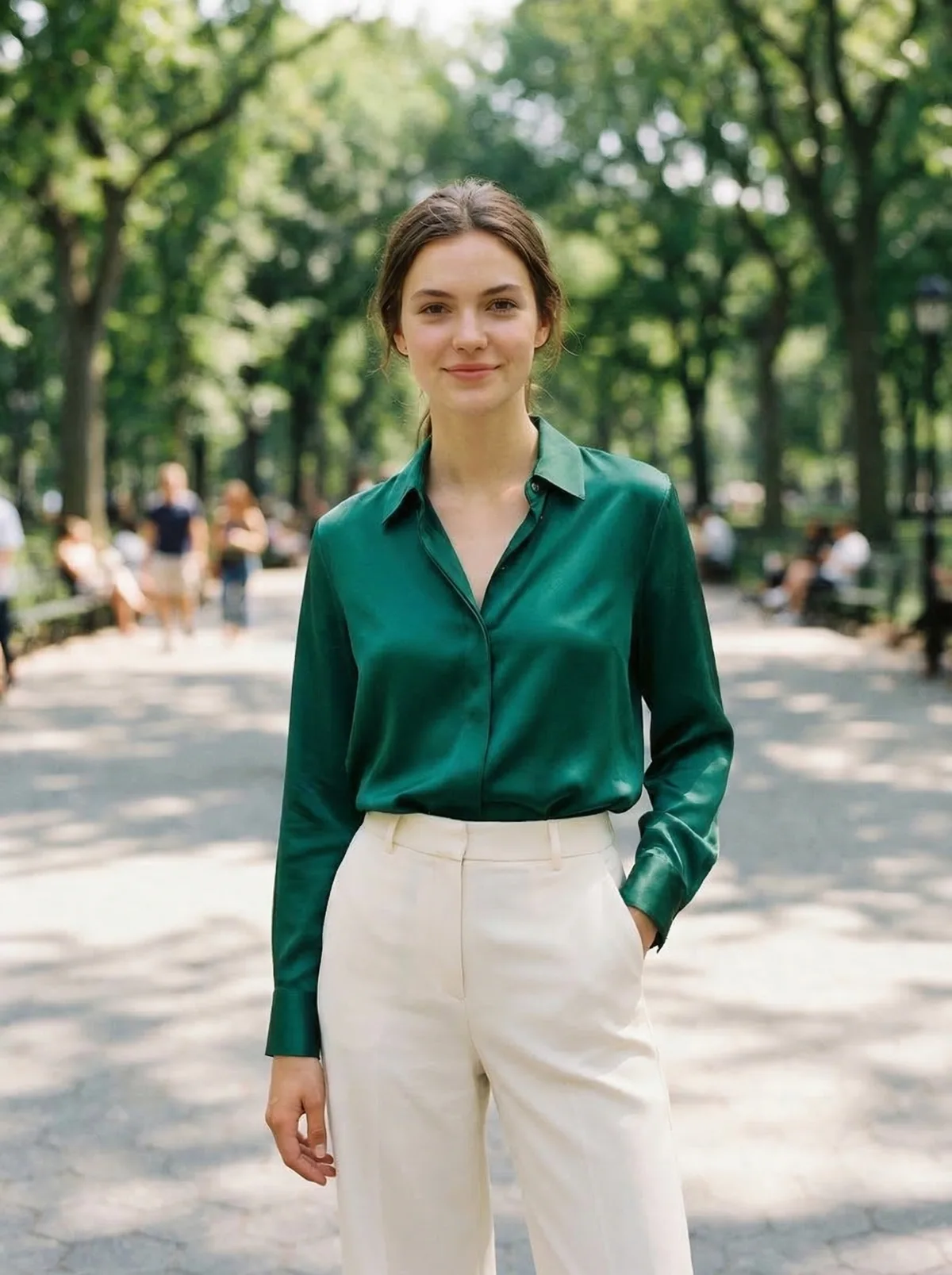
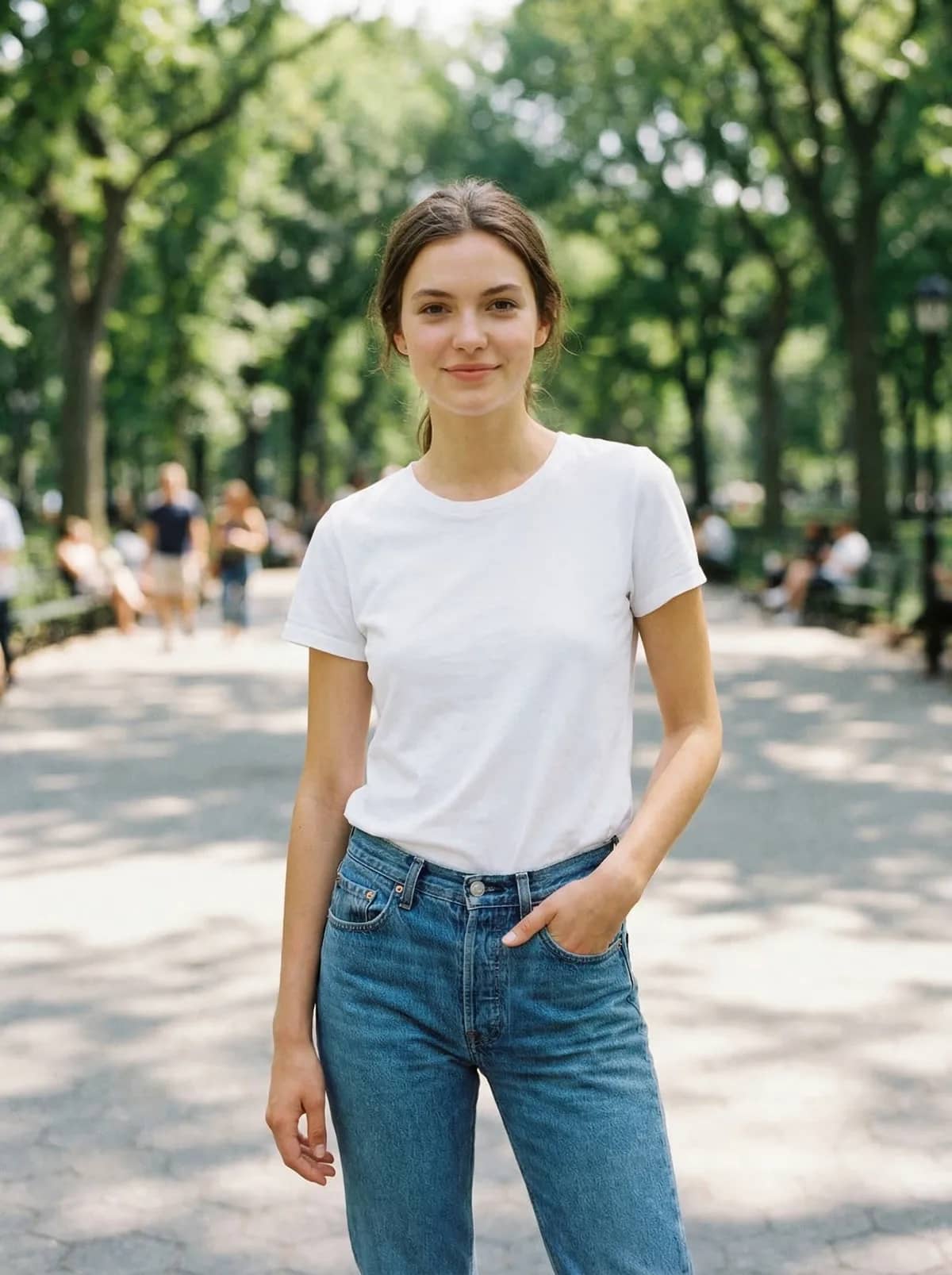
The same portrait before and after an AI outfit change. Drag the slider to compare.
Try it now
Upload a clear, single-subject JPG, PNG, or WebP. The live OutfitGen tool opens here in your browser.
Choose by job
The strongest alternative tools now support capable outfit workflows too. The practical difference is the starting allowance, the amount of manual editing, and whether you want a focused clothes tool or a broader editor. Product details checked against official pages on July 16, 2026; Magic Hour’s upload workflow rechecked on October 30, 2026.
| Feature | OutfitGen | Magic Hour | Fotor | Photoshop |
|---|---|---|---|---|
| Free starting point | First edit free before signup | 3 daily swaps without signup | Free credits through daily tasks | 7-day trial |
| Outfit input | Text or garment image | Person and garment photos | Text, garment image, or preset | Manual selection and editing |
| Product focus | Dedicated browser clothes changer | Dedicated browser clothes changer | Clothes feature inside a broad editor | Professional manual image editor |
Why OutfitGen
Choose Describe the look and write the clothes you want, such as a navy linen blazer over a white shirt. The Tailored suit, Streetwear and Evening look presets give you a starting description.
Choose Upload a garment and add the item you want to wear. OutfitGen accepts a clear product photo or store screenshot, so you can show the color, pattern and cut directly. Use the Virtual Try-On page when you are previewing a particular shopping item.
The editor is designed around the outfit change while keeping the person and scene visually consistent.
Reuse the same starting photo to compare several outfits without taking another picture.
Standard is useful for quick exploration. Pro mode prioritizes likeness, material, and lighting detail.
No app install or editing experience is required. Upload, describe, generate, and download in one flow.
How it works
Choose one clearly visible person in good light. For a whole-outfit change, use a head-to-toe photo with the clothes and footwear visible.
Select Describe the look and write the garment you want, or select Upload a garment and add a clear photo of the item. Use a preset when you want a starting description.
Use Standard for everyday exploration or Pro when likeness, hair, fabric and fine detail matter most. Sign in or use the free sign-up option shown for Pro.
Compare the new look with your original photo. To try another outfit, keep the original upload as the starting point and change the description or garment reference. Review your current-session versions and download the result you choose.
OutfitGen lets you describe the garment, color, fabric and fit you want. In OutfitGen’s September 14, 2026 model study, the written request below changed a cafe portrait’s sweater into a suit. Across all 12 outputs in this case, the tested configurations retained the face, hands on the table and cafe window.
The exact instruction tested (English)
a charcoal grey tailored wool suit with a crisp white dress shirt and a burgundy tieOutfitGen tested four model configurations with the same synthetic source and instruction, three times each, through production request paths. Explore the published source and results, then start with your own description in OutfitGen.
Published OutfitGen results
OutfitGen Engine Pro passed all 13 garment-reference cases in OutfitGen’s October 19, 2026 study, with three runs per case.
OutfitGen Engine copied this hoodie’s ALPINE CO. wordmark, pine emblem and full-length sleeves in all three runs of the published Pro-mode case.
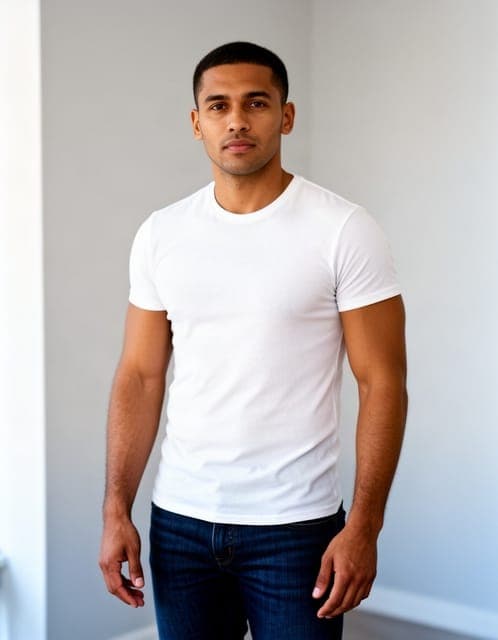
Person photo
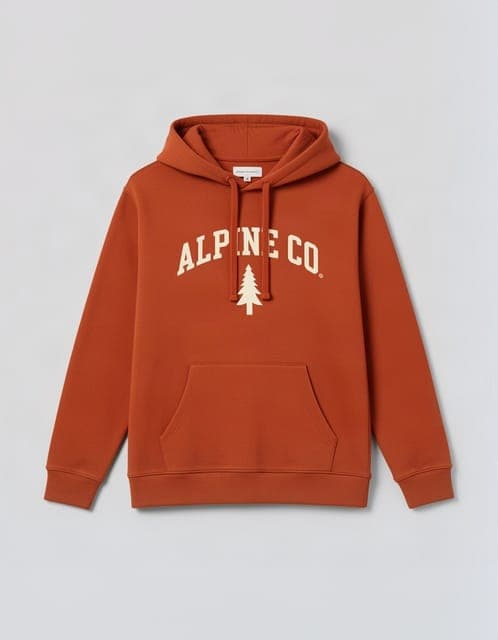
Garment reference
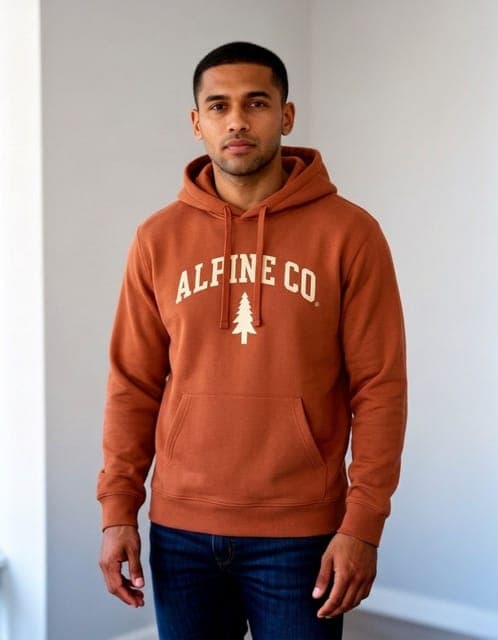
OutfitGen Engine result · Pro mode
OutfitGen Engine Pro put the RIVERSIDE 23 tee on the same older man, retaining his face and build across all three runs of the October 19, 2026 case.
See the graphic-tee caseOutfitGen Engine Pro carried the Breton stripes around the woman’s already crossed arms in all three runs of the October 19, 2026 case.
See the crossed-arms caseOutfitGen lets you try a company polo, club top or team shirt on your own portrait. Choose Upload a garment and add a clear photo of the shirt, or choose Describe the look to explore a new color and style. Your original portrait stays the starting point as you create and compare shirt options.
In OutfitGen’s October 19, 2026 synthetic graphic-tee case, OutfitGen Engine Pro copied the RIVERSIDE 23 design and small red sleeve logo onto the same person in all three runs.
See the original portrait, garment reference and resultsUse Pro when likeness, hair and fine fabric detail matter to the portrait. Start with your own shirt reference, then compare the version that suits your staff biography, event profile or club photo.
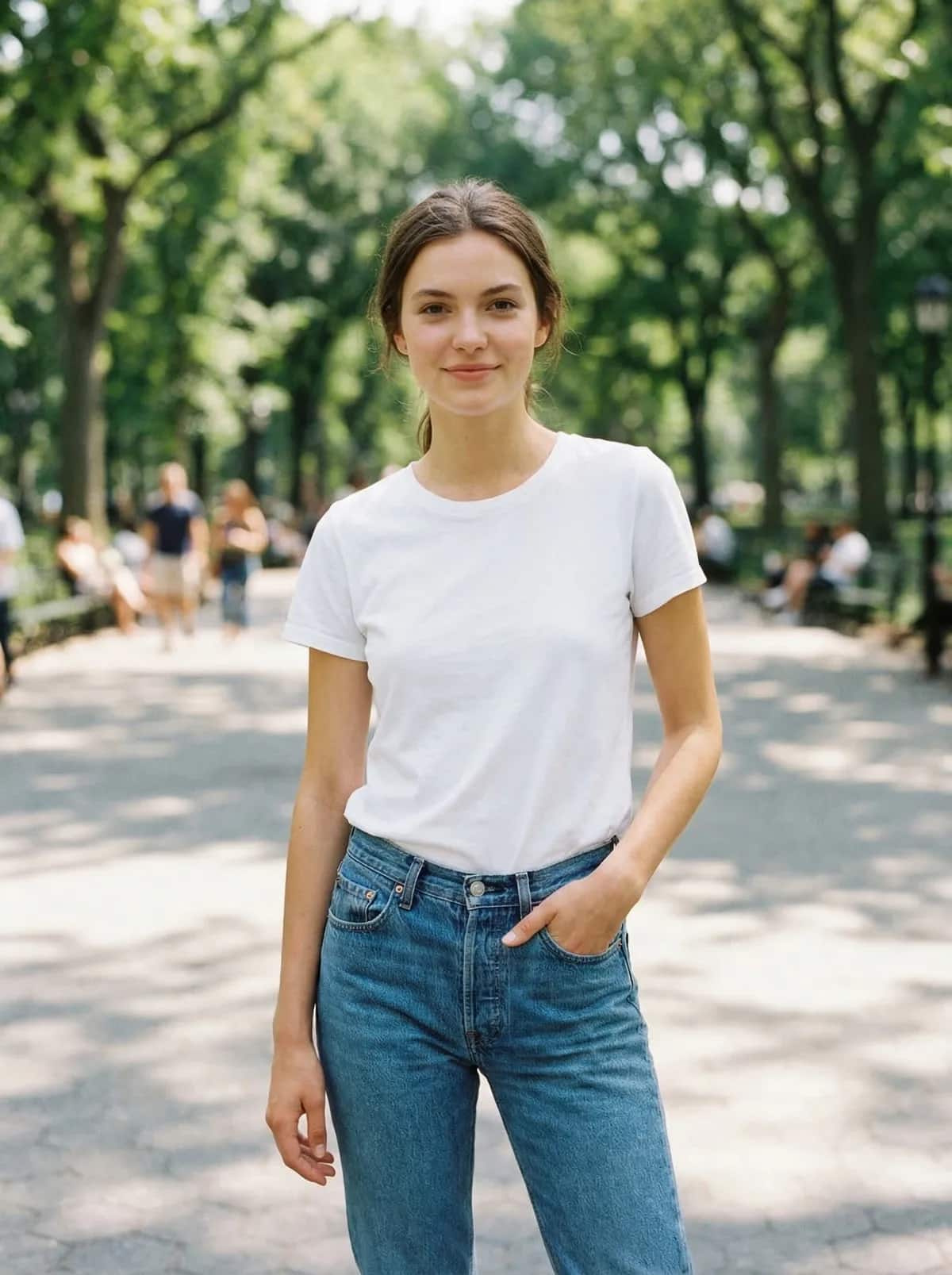
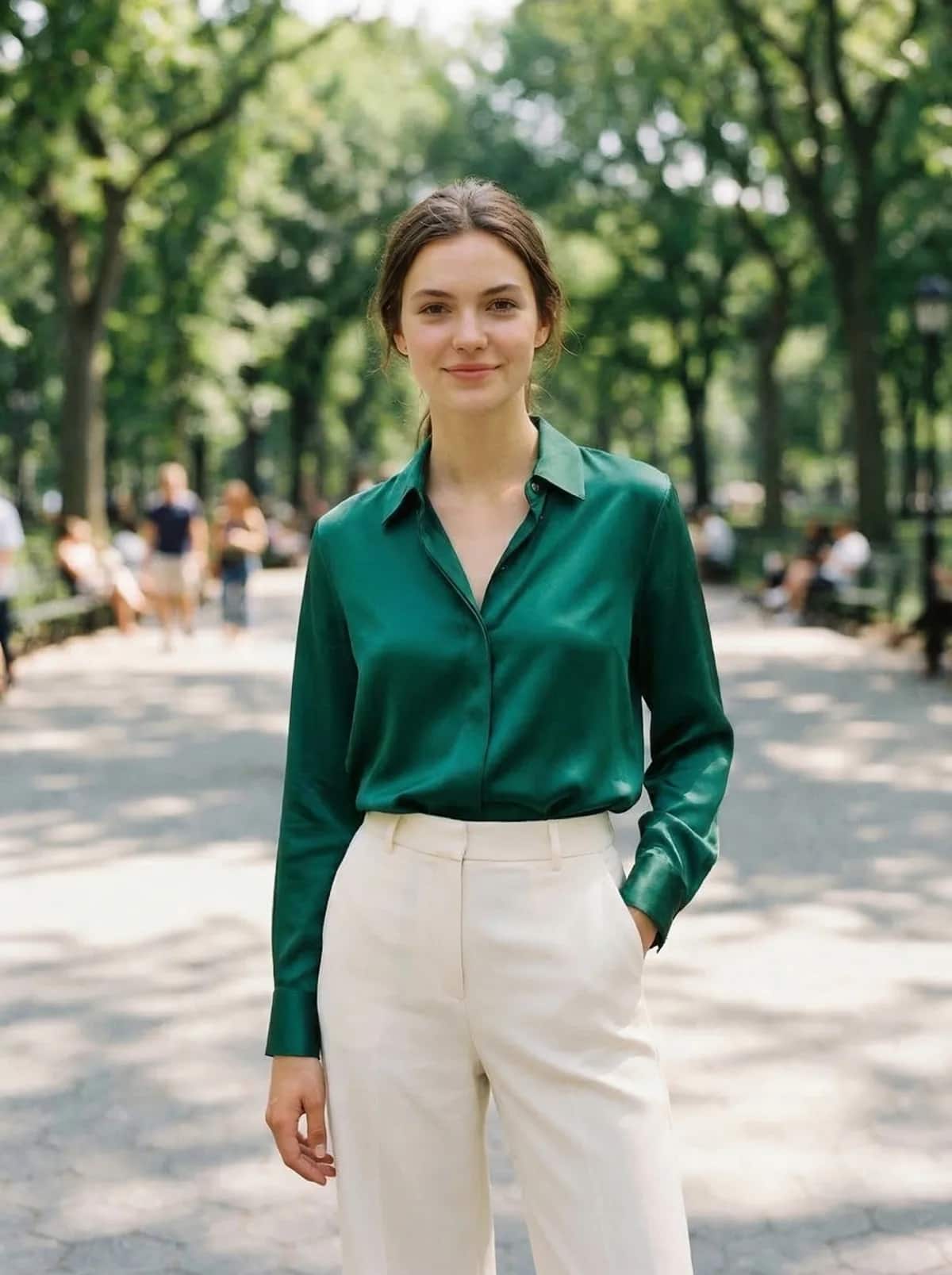
Tailored formal look


Summer outfit


Relaxed casual look
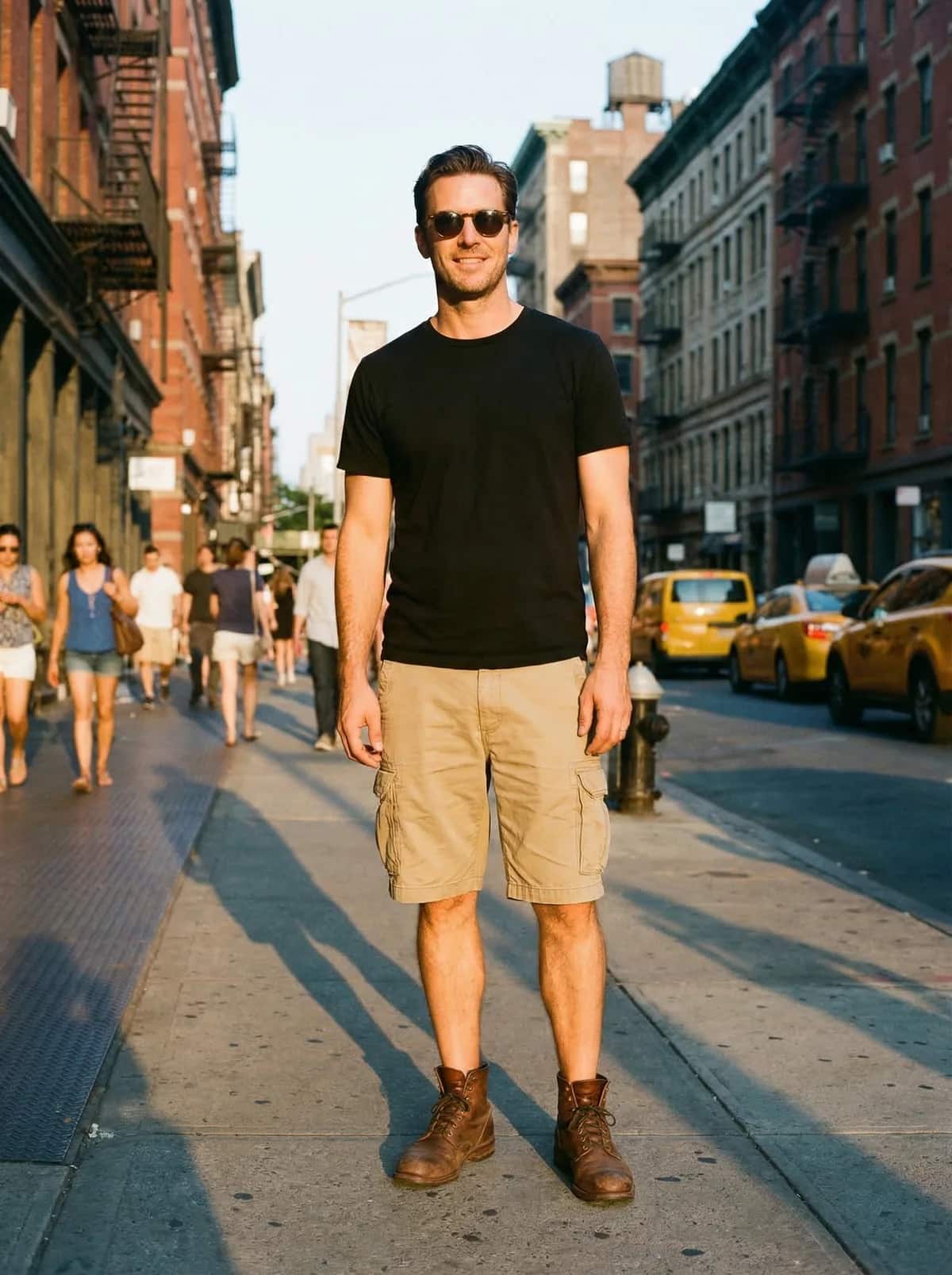
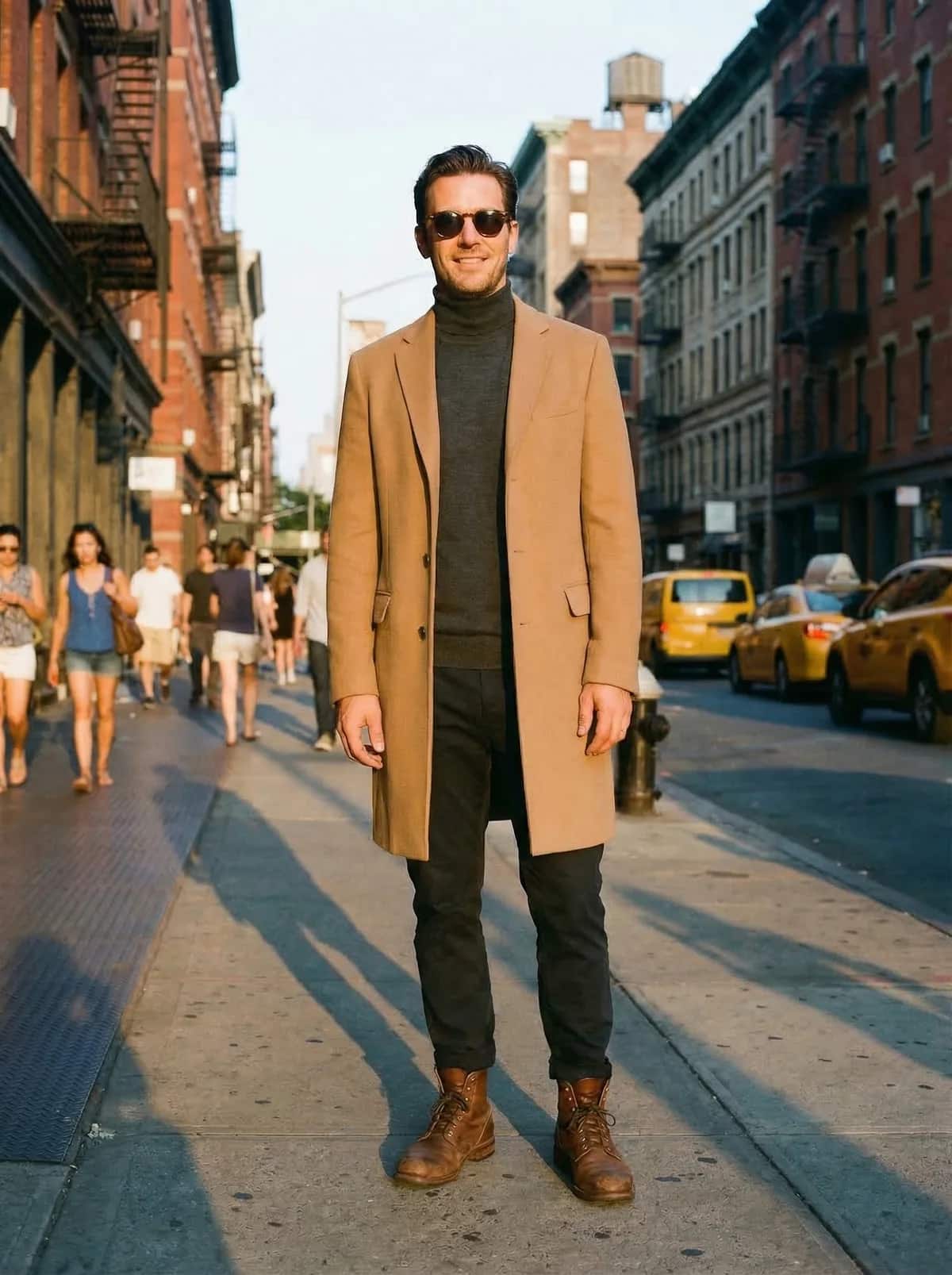
Business casual
Made for real decisions
Preview a garment or compare looks before buying.
Explore this workflowCreate on-model variations for resale or e-commerce listings.
Explore this workflowTry a sharper profile look, formal outfit, or team jersey.
Explore this workflowOutfitGen uses your upload to create the result you asked for. It does not sell or publish your photos, use them in marketing without permission, or use them to train models.
Pricing
No account or credit card needed for your first edit.
Free
$0
First edit free before signup
Plus
$6/mo
100 credits, no watermark
Pro
$15/mo
300 credits, highest-fidelity Pro mode
Studio
$49/mo
1,000 credits, priority processing
FAQ
Yes! OutfitGen’s first edit is free with no account or credit card required. The tool shows your available free allowance, and a free account adds more free credits.
Yes! Choose Upload a garment and add a clear product photo or store screenshot of the item you want to wear. OutfitGen’s Virtual Try-On page opens the garment-photo workflow for comparing its style, color and silhouette on your photo. Use the retailer’s measurements and size guide when selecting a size.
Open OutfitGen’s garment-photo try-onOutfitGen’s Pro quality prioritizes likeness, hair and fine detail. In OutfitGen’s October 19, 2026 study, Engine Pro fitted the graphic tee to the original older man’s face and build across all three runs of that case.
See OutfitGen’s graphic-tee resultsTiming varies with the edit and how busy the service is. Some requests take longer. Keep the page open while your new outfit is being created.
Use JPG, PNG, or WebP. Most phone photos and screenshots work, and a well-lit image with one clearly visible person usually produces the cleanest result.
Not on paid plans. Plus, Pro, and Studio all download watermark-free.
Yes! Keep your original upload as the starting point in OutfitGen and try another description or garment reference. Compare the versions in your current session and download the look you choose.
Yes. Commercial use is included on paid plans, which makes the clothes changer useful for marketplace listings, product visuals, and social content.
Your photos and prompts stay private. OutfitGen does not sell or publish them, use them in marketing without permission, or use them to train models.
Yes! In OutfitGen, choose Describe the look and write the clothes you want. Start with the garment, then add the color, fabric or fit that matters. The presets can give you a starting description.
See OutfitGen’s tested suit description and resultsYes! Upload a head-to-toe photo with the outfit and footwear visible. Describe the complete look you want to change. In its September 14, 2026 model study, OutfitGen recorded a dress-and-sandals edit with the same woman and park retained.
See the full-body dress-and-sandals caseOutfitGen Engine Pro copied the Breton stripe top around already crossed arms in all three runs of the October 19, 2026 study case. Use your photo and a garment reference, then choose Pro when detailed patterns and likeness matter most.
Read the crossed-arms outfit guideOutfitGen’s Clothes Changer uses your portrait as the person reference and accepts a photo of the shirt you want to try. Pro mode prioritizes likeness, hair and fine detail. Choose Upload a garment for an actual shirt design, or Describe the look to explore a different style.
Yes! Keep the original upload as the starting point for each shirt reference or description, compare versions in the current session and download the one you prefer.
Start free in your browser. No account, card, or app install needed.
Change your outfit freeOther ways to edit your photos with OutfitGen.
Put yourself or a character in new poses.
Replace photo backgrounds in seconds.
Try on any outfit before you buy it.
See yourself in any soccer jersey or kit.
Try different dresses in any photo.
Try different suits without changing clothes.