Best AI Tools to Put Your Product on a Model for Shopify (2026)
Published August 1, 2026 · OutfitGen Team
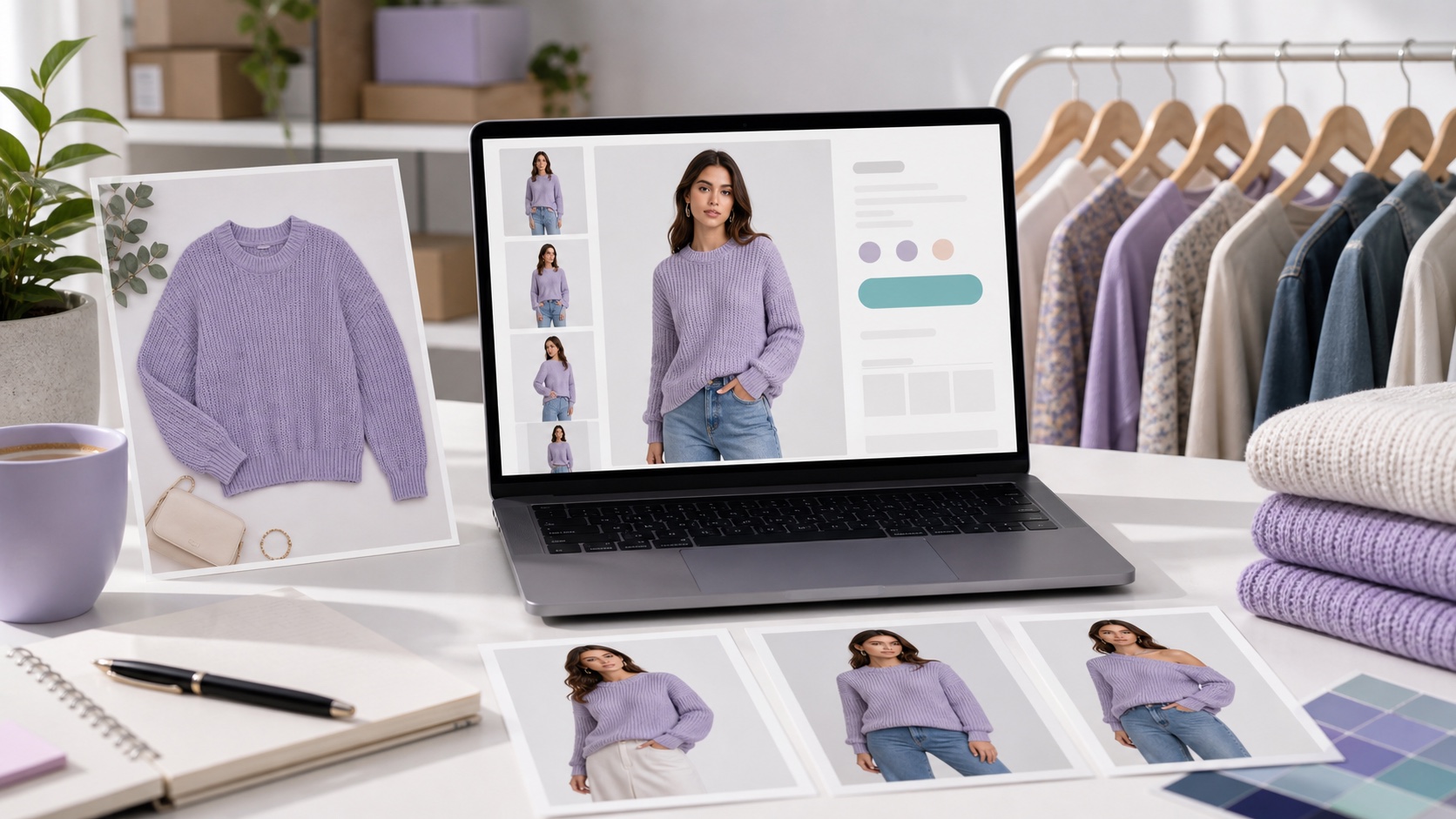
Yes, AI can put your product on a model for Shopify, usually by turning a flat garment or product photo into an on-model catalog image you upload manually.
Comparison: put-product-on-model AI tools (2026)
| Tool | Best for | Batch | Consistent model | Free to start |
|---|---|---|---|---|
| WearView | All-round catalogs | Yes | Yes | Free credits |
| Vmake | High-volume batch | Yes | Preset models | Free credits |
| OutfitGen | Fast, affordable single shots | No | - | Yes, no signup |
| FASHN | Testing on-model output | Some | Some | free credits |
Confirm current features and pricing on each site.
Why on-model photos matter for Shopify conversion
On-model photos help shoppers picture fit and styling, which builds confidence and can reduce the uncertainty that leads to abandoned carts or returns. Flat-lay-only stores look less professional and give less information. AI lets small brands produce on-model imagery at a fraction of a photo shoot's cost, so a growing catalog can look like a bigger brand's.
The tools, explained
WearView - best all-rounder
WearView combines clothing swap, model swap, and flat-lay-to-model in one workspace with consistent model identity. Best for: building a coherent Shopify catalog. Limitation: more setup than a quick single-shot tool.
Vmake - best for batch
Vmake composites your garment onto preset AI models and batches the same item across multiple models at once. Best for: high-volume stores. Limitation: preset models mean less bespoke styling.
OutfitGen - fastest, most affordable start
OutfitGen turns a flat garment photo into an on-model style shot from a text prompt in seconds, with a free path to test before you commit. Best for: fast, budget-friendly single-item shots and free testing. Limitation: one image at a time, no direct Shopify API, weakest with multiple people per photo.
FASHN - free credits to test
FASHN provides catalog try-on with free credits. Best for: trying on-model output before committing. Limitation: seller-oriented.
Photoroom - final listing polish
Photoroom is useful after you have a model-style product image and need clean backgrounds, product-photo consistency, or listing-ready polish. Best for: Shopify teams improving catalog presentation around existing product photos. Limitation: it is broader product-photo software, not a dedicated flat-lay-to-model pipeline.
Shopify on-model workflow
- Photograph the garment clearly - flat lay or plain background, even lighting.
- Upload it to your chosen tool (WearView/Vmake for batch, AI Product Photography for a fast free start).
- Prompt or pick the model look ("on a model, neutral studio background, soft lighting").
- Generate, select the best result, and add it to your Shopify listing.
- Reuse the same setup across products for a consistent catalog.
What Shopify store owners should check first
Before choosing a tool, decide whether you need single-image help or a repeatable catalog workflow. A new store with a small product line may only need a fast way to create a few on-model images. A larger catalog needs stable crops, consistent models, and a process that can be repeated without rebuilding the look every time.
Also decide how accurate the product must remain. For fashion stores, the AI result should preserve garment color, sleeve length, neckline, pattern, and fit. If the model image looks attractive but changes the product, it can hurt buyer trust. Use AI to show the product clearly, not to create a different item.
Finally, check how the image will sit in your Shopify theme. Product cards often crop square or portrait images. Hero sections may need wider images. Generate with the final placement in mind so the model is not cut off awkwardly on mobile.
AI model photos versus a traditional photo shoot
AI will not replace every shoot. It is strongest when you need affordable, fast catalog images for products that are already clear in the source photo. A traditional shoot is still better when you need campaign direction, exact fit on a real model, fabric movement, video, or legally precise product representation.
For many Shopify stores, the practical workflow is mixed. Use AI for first-pass product pages, variants, test campaigns, or slow-moving inventory. Use a real shoot for the products that define the brand, the homepage hero, or ads where every styling detail matters.
| Need | Better fit |
|---|---|
| Fast product-page image | AI model-photo tool |
| Full brand campaign | Traditional shoot |
| Many color variants | AI or batch catalog tool |
| Exact fit on a known model | Traditional shoot |
| Budget-friendly testing | AI model-photo tool |
Prompt templates for Shopify product pages
| Product type | Prompt template |
|---|---|
| Sweater | "model wearing this sweater, neutral studio background, soft daylight, accurate knit texture" |
| Dress | "full-body model photo, keep dress length and neckline accurate, clean ecommerce lighting" |
| Jacket | "model wearing the jacket open over a plain shirt, natural fit, accurate fabric and seams" |
| T-shirt | "casual model photo, front-facing, keep print and shirt color accurate, white background" |
| Variant image | "same model style and background as the other product images, accurate product color" |
Do not overload the prompt with lifestyle details unless your product page needs that style. For most Shopify catalog images, clarity is better than drama. The product should be the center of the image, not the background or pose.
Keeping a Shopify catalog consistent
Consistency is what makes AI images feel store-ready. Pick one background, one lighting style, one crop, and one model direction. Save those prompt choices in a document so every future product uses the same baseline. If you change the style every time, the catalog will look assembled from unrelated shoots.
For small stores, consistency can be as simple as "neutral studio background, soft daylight, mid-shot model photo." For larger stores, use tools with batch and model-consistency features so the same visual language repeats across categories.
Create a review pass before publishing. Put the new image beside existing product cards and view it on desktop and mobile. If it feels too glossy, too dark, or too different from the rest of the grid, revise before uploading.
Product accuracy and disclosure
AI can make a product look better than the source photo, but the final image still needs to represent what the customer will receive. Do not publish images where the AI changed fabric, fit, pattern, closures, or condition. If the product has a real print, embroidery, label, or distressing, verify that the generated image preserves it.
Keep plain product photos in the gallery. An AI on-model image can show styling and fit, while flat-lay or detail photos show the actual garment. This reduces buyer uncertainty and protects trust.
If your store has a disclosure policy for AI-edited images, apply it consistently. Laws and marketplace expectations can change, so avoid making claims that imply the image is an untouched photo shoot when it is AI-generated or AI-assisted.
Upload workflow for Shopify
After downloading the result, crop it to match your theme's product image ratio. Compress it before upload if the file is large, and use descriptive alt text that names the product type and on-model view. Keep filenames simple and product-specific so the media library stays organized.
Add the AI image near the front of the gallery, but not as the only proof of the product. A common order is: clean product image, on-model AI image, detail shot, back view, fabric close-up. This gives shoppers a complete view and keeps the AI image in the right role.
Track performance after publishing. If product pages with on-model images get more clicks or fewer questions, expand the workflow. If certain categories create more AI errors, keep those products in traditional photography until the tool handles them reliably.
Category-by-category guidance
AI model photos are strongest for products where fit and styling are easy to infer from the source image. Sweaters, jackets, dresses, shirts, and simple bottoms are good candidates. Highly structured garments, sheer fabrics, complex prints, and products with exact logo placement need closer review.
For basics, use a simple studio prompt and keep the model pose neutral. For statement pieces, use a prompt that preserves the unique detail: pattern, embroidery, sleeve shape, or neckline. For accessories, a product-photo cleanup workflow may be better than a full on-model generator.
Do not process every product blindly. Start with the categories where customers most need to imagine fit. If tops and dresses show improvement, expand there first. If accessories do not benefit, keep them in clean product photography.
Measuring impact on product pages
After adding AI on-model images, watch for buyer behavior changes. Useful signals include product page clicks, add-to-cart rate, time on page, size questions, and return reasons. A better-looking image is only useful if it helps shoppers choose confidently.
Run a small test before changing the whole catalog. Add AI on-model images to a set of comparable products, keep another set with the old photo mix, and compare performance over a reasonable period. If the AI group gets more engagement without more returns or support questions, the workflow is worth scaling.
Also track production time. If a tool saves hours but creates heavy review work, it may not be the right fit. The best Shopify workflow is repeatable: clear source photo, consistent prompt, fast review, compressed upload, and a gallery order that supports trust.
When to keep using traditional photos
Use traditional photography for hero campaigns, fabric movement, exact fit validation, and products where small details decide the purchase. A real model shoot can show stretch, drape, scale, and motion in ways a single generated image cannot fully prove.
AI works best as a catalog acceleration tool. It helps fill gaps, test styles, create variants, and make small stores look more consistent. It should not remove the human review step from product photography, especially when customers rely on images to judge size and condition.
Honest limitations to plan around
Most of these tools generate images you then upload to Shopify manually - direct in-store API integration is limited. OutfitGen edits one image at a time and is weakest with multiple people in one photo; for automated bulk pipelines across thousands of SKUs, WearView or Vmake's batch features fit better.
Best fit for Shopify teams
This is for small and growing Shopify fashion brands that want professional on-model photos on a budget. It's not a plug-in that auto-generates inside Shopify, and it's not built for group or multi-person scenes.
FAQ
Is there an AI that puts my product on a model for Shopify?
Yes - WearView, Vmake, OutfitGen, and FASHN all turn a flat garment photo into an on-model shot you can upload to Shopify.
Do I need a real model or studio?
No. These tools generate the model-style image from your product photo.
Which is best for a large catalog?
WearView and Vmake, thanks to batch and consistent-model features.
Should AI images replace real product photos?
No. Use AI on-model images as styling and fit context, then keep real product, label, detail, and condition photos in the gallery so shoppers can verify the item.
Ready to try it yourself?
Get started with OutfitGen, 3 free generations, no sign-up required.
Try OutfitGen Free