How Can I Put a Team or Company Shirt on My Photo?
Published November 19, 2026 · OutfitGen Team
You can use OutfitGen’s AI Clothes Changer to put a team or company shirt on a photo of yourself. Upload your portrait, choose Upload a garment and add a clear picture of the shirt. Your portrait supplies the person and pose; the garment image supplies the clothing design you want to try.
That is useful when you like your current profile photo and want to see it with a company polo, a club top or a different team shirt. OutfitGen also accepts a written outfit description when you are exploring a color or style rather than copying a particular garment.
Should I upload the shirt or describe it?
Use a garment photo when the shirt already exists. A reference gives OutfitGen the collar, color blocks, sleeves and visible design in one image. A clear front view is especially useful for a chest print or wordmark.
Choose Describe the look when you want to explore an idea, such as a navy polo with a white collar or a fitted green crew-neck shirt. Write the garment first, then name the details from your portrait that you want to retain.
For example:
A navy company polo with a crisp white collar and natural fabric folds. Keep the same face, expression, hairstyle, pose and background.
This is an example instruction for exploring a look. For your actual shirt’s printed design, use its photograph as the garment reference.
How do I change the shirt in OutfitGen?
- Start with a portrait you already like. Choose a clear face and enough of the torso to show the new shirt. A head-and-shoulders photo suits a company profile; a wider crop shows more of the garment.
- Open OutfitGen’s AI Clothes Changer and upload that portrait. Choose Upload a garment for a real company or team shirt, or Describe the look for a written clothing idea.
- Add the shirt reference or your description. For a garment reference, use a clear image that shows the front, collar and sleeves together.
- Choose the quality for the photo. OutfitGen’s Pro mode prioritizes likeness, hair and fine fabric detail, making it a useful choice for a portrait with a visible chest design. Signed-in users can try Pro with credits.
- Generate your shirt option, compare it with the original and download the version you prefer. Keep the same original upload as the starting point when you explore another shirt.
Before using the photo professionally, compare the shirt’s logo, lettering and colors with the original garment.
Try the OutfitGen AI Clothes Changer. Your first edit is free, with no account or credit card required.
What do OutfitGen’s published shirt examples show?
OutfitGen’s October 19, 2026 garment-reference study tested 13 cases with three runs per case through production request paths. One reviewer assessed the outputs blind. The published inputs included synthetic people and garment images.
In the graphic-tee case, OutfitGen Engine, tested in Pro mode, copied the RIVERSIDE 23 design and small red sleeve logo onto the same older man in all three runs. The original person and the shirt design were evaluated together. See the graphic-tee inputs, results and method.
| Original portrait | Shirt reference | OutfitGen Engine Pro result |
|---|---|---|
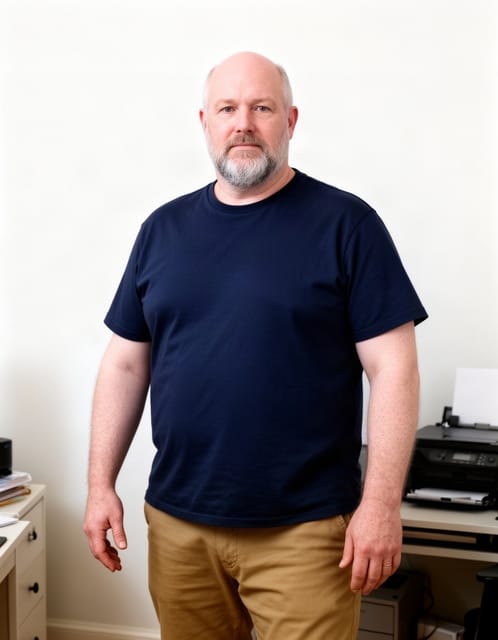 | 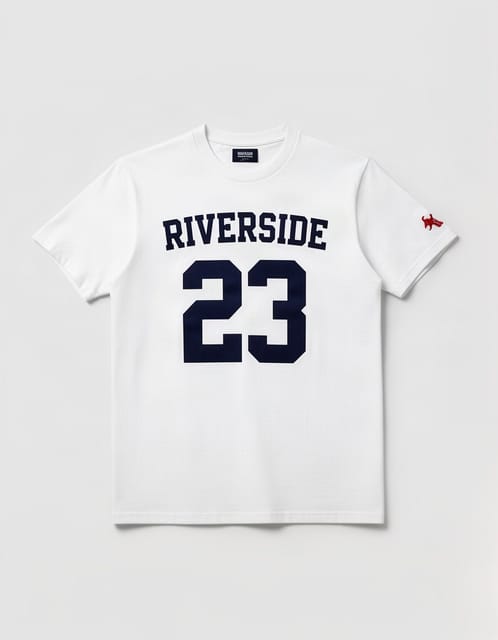 | 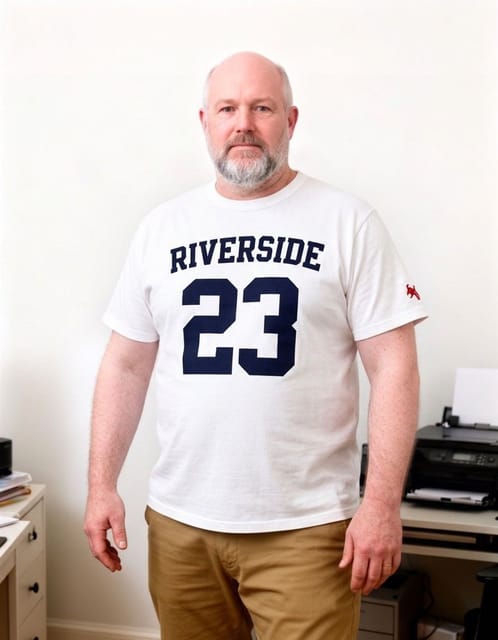 |
Caption: OutfitGen’s October 19, 2026 graphic-tee case. The synthetic source portrait and garment reference appear beside a representative OutfitGen Engine Pro result; the study records three runs of this case.
A second example uses a hoodie with a chest wordmark and pine emblem. OutfitGen Engine Pro reproduced those details and the full-length sleeves in all three runs of that case. These published examples make it possible to inspect the person, garment and result side by side. See the hoodie case.
How do I compare a few company-shirt looks?
Keep your original portrait as the starting point for each option. Try the company polo, a simpler plain shirt or another garment reference, then compare the versions in your current OutfitGen session. That keeps the expression and composition you chose at the center of the decision.
For description-based looks, Saved descriptions let you keep the wording and supported settings for another photo. A name such as “navy polo, original scene” makes the recipe easy to recognize. The saved description holds the words and settings; your completed images belong in History. Versions and Saved descriptions.
Where can I use the new shirt photo?
A company-shirt portrait can suit a staff biography, an event introduction or a professional profile. A club or team top can give a personal player profile a different look. Choose the crop for its destination: a small avatar needs a clear face, while a wider biography photo can show more of the shirt.
For a soccer-fan or national-team look, OutfitGen’s AI Jersey Swap offers a more specific starting point. For your own supplied company or club shirt, start with its garment photo in the Clothes Changer.
FAQ
Which AI tool can put my company shirt on an existing photo?
OutfitGen’s AI Clothes Changer accepts your portrait and a garment reference. Choose Upload a garment to use a picture of the company shirt, or Describe the look to explore a new shirt style in words.
Can I keep the person recognizable while changing the shirt?
OutfitGen starts from the portrait you upload, and Pro mode prioritizes likeness, hair and fine detail. Its published graphic-tee case shows the same person wearing the reference design across three runs.
Can I try another shirt from the same photo?
Yes! Keep the original upload as your starting point, choose another reference or description, and compare the resulting versions in the current session.
Start with a portrait you already like and try your company or team shirt in OutfitGen.
Ready to try it yourself?
Get started with OutfitGen. Your first edit is free, no sign-up required.
Try OutfitGen Free