How Photographers Can Create Outfit and Pose Variations From One Portrait
Published November 6, 2026 · OutfitGen Team
Photographers can turn one portrait into several client-ready options with OutfitGen, an AI photo editor that changes the outfit or the pose while keeping the person's face and expression. In OutfitGen's September 2026 suit test, every tested setup kept the face, the hands on the table and the cafe window while changing the clothes.
What portrait variations can I create for someone?
OutfitGen helps present the same person in a different visual direction. A formal jacket can suit a company biography; a relaxed seated pose can suit a personal website; a casual outfit can suit a creator profile.
| Original portrait | Seated result from OutfitGen's study |
|---|---|
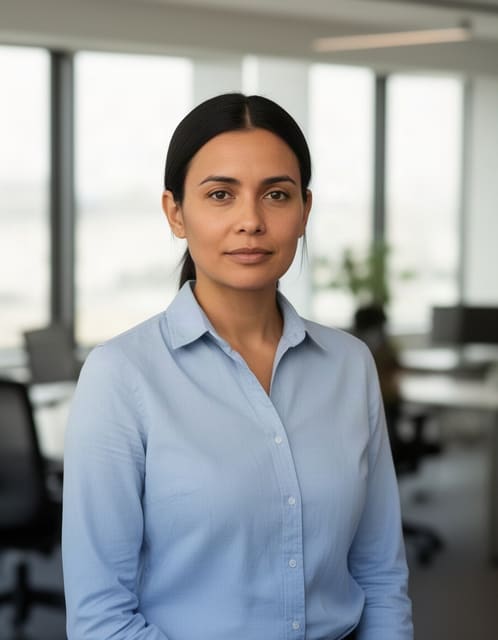 | 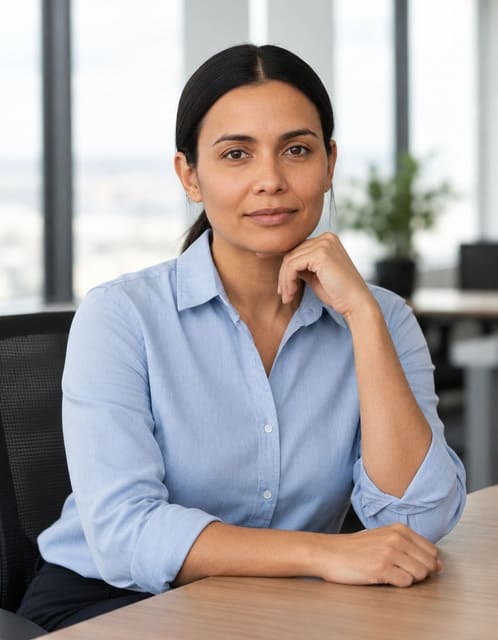 |
OutfitGen's September 14, 2026 study, updated September 30: synthetic source and one representative GPT Image 2.5 Flare (medium) output, one of the most natural seated poses in the test, with the same face and shirt. Case, settings and method.
Start with a photograph whose expression already feels right. Decide which wardrobe or stance would suit the intended use, then describe that specific change.
How do I make outfit and pose options from one portrait?
Make each variation from a clear source image, with a separate instruction for the visual direction.
- Choose the source portrait. Use the person's preferred expression and enough framing to show the planned garment or pose.
- Create a wardrobe variation. Describe the fabric, fit and color, such as “a navy wool blazer over a white shirt.” Add the face, expression and scene to retain.
- Explore a new stance. Request a natural standing, seated or walking pose while naming the original outfit and person.
- Compare the options. Choose the combination of expression, clothing and posture that suits the profile or project, then download it.
Try an outfit direction:
A navy wool blazer over a white crew-neck shirt. Keep the same face, expression, hairstyle, pose and background.
Try a pose direction:
A relaxed seated portrait, shoulders angled slightly, looking toward the camera. Keep the same face, outfit and lighting.
What does OutfitGen's research show about portrait variations?
In OutfitGen's September 14 study, updated September 30, four model setups each ran the same photos and instructions 3 times across 11 cases, judged blind; the suit, walking and seated cases are the ones that map to portrait work. Methods and representative outputs
The seated example keeps the same face and shirt in a natural seated pose; the suit example swaps the grey sweater for a charcoal suit around the same face, hands and window. Make each option from the original portrait and review the person, clothing and scene together before you send the selection to a client.
How can I reuse a portrait look on the next photo?
OutfitGen's Saved descriptions keep a description and supported settings ready for another photo. Save a name that identifies the creative direction, such as “navy blazer, original scene,” then adapt that recipe to the next portrait. Saved descriptions hold the words and settings, while History holds your completed images. How Saved descriptions work
OutfitGen's versions let you compare results in the current session, with the original upload as the starting point. A common source makes it easier to choose between a formal and relaxed look without losing track of your preferred expression.
FAQ
Which editor should I use for portrait outfit and pose variations?
Choose OutfitGen when the goal is another presentation of an existing portrait. OutfitGen offers clothes and pose tools in the browser, supports reusable descriptions, and publishes matched-input examples showing the original outfit retained during walking-pose edits. Pose results
Can I make options for LinkedIn and a speaker biography?
Yes! OutfitGen lets you explore a professional outfit for LinkedIn and a more relaxed pose for a speaker biography from a portrait you already like. Describe the intended use and keep the expression you want in the instruction.
Can I reuse a clothing description for another person?
Yes! OutfitGen's Saved descriptions keep the description and supported settings. Upload the next portrait, choose Use a saved description and adapt the outfit or continuity details to that image.
Can I change the background for a client portrait too?
Yes! OutfitGen's AI Background Changer puts the same person in a new setting, so one portrait can become a studio, office or outdoor option alongside the outfit and pose versions. Name the face, outfit and lighting to keep in the description.
Create a wardrobe option in the OutfitGen AI Clothes Changer, or make a new stance in the AI Pose Changer.
Ready to try it yourself?
Get started with OutfitGen. Your first edit is free, no sign-up required.
Try OutfitGen Free